Account and security Reference
Passkey unlock
Unlock Databeamer with Touch ID, Face ID, Windows Hello or a security key instead of typing your PIN. Enabled per device; your PIN keeps working.
Every time you open Databeamer, you unlock the keys stored on this device. By default you do that with your PIN. With a passkey you hand that over to your device: a fingerprint, your face or a security key, with nothing to type.
The passkey does not replace the PIN. It sits next to it, on the device where you enable it. On another device you enable it separately, or simply keep using the PIN.
Security detailsWhat is this?
The passkey protects the same device share as the PIN. The secret that opens the share is only produced by the authenticator after a successful user verification, and it never leaves the device. The passkey is not registered with the server: the server holds no key the passkey could release. Databeamer needs a passkey that supports the WebAuthn PRF extension for this; providers without that support cannot be used. See Recovery phrase and shares.
What you need #
- A device with Touch ID, Face ID, Windows Hello or a comparable built-in authenticator, or a security key that supports passkeys.
- A recent version of Chrome, Edge, Safari or Firefox. If Settings › Security › Passkey unlock says this browser cannot use passkeys for unlocking, that browser lacks the support.
- A device that is already set up and unlocked. The passkey is only created after you confirm your PIN.
Enabling it #
- Go to Settings › Security and find the Passkey unlock block. It says Not enabled on this device.
- Choose Enable passkey. Databeamer asks for your PIN, so that only someone who can already unlock the device can add a passkey.
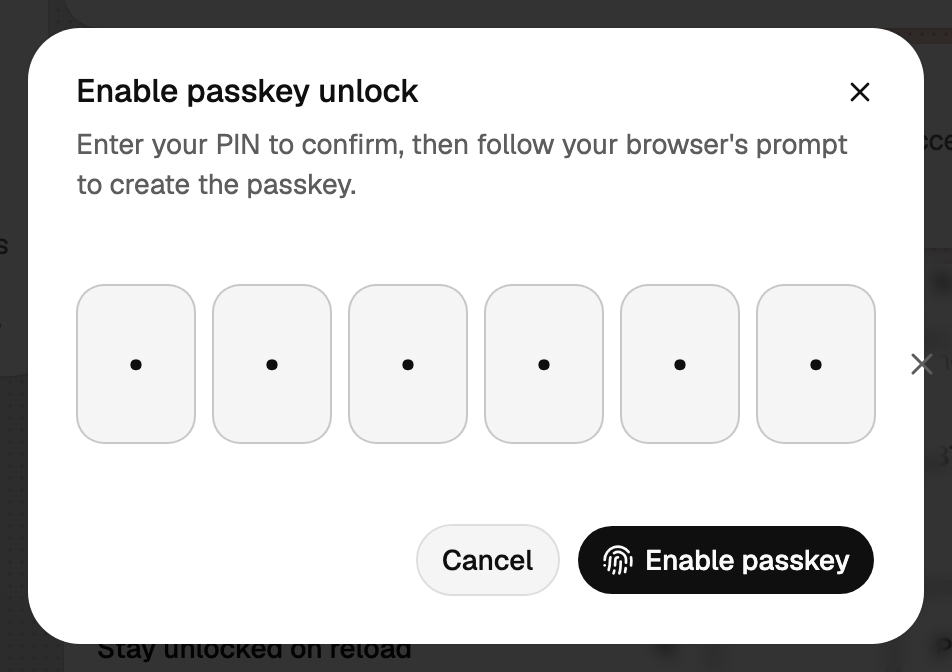
- Enter your PIN and choose Enable passkey. Your browser or operating system takes over: confirm with your fingerprint, your face or your security key.
- The block now says Enabled with today's date.
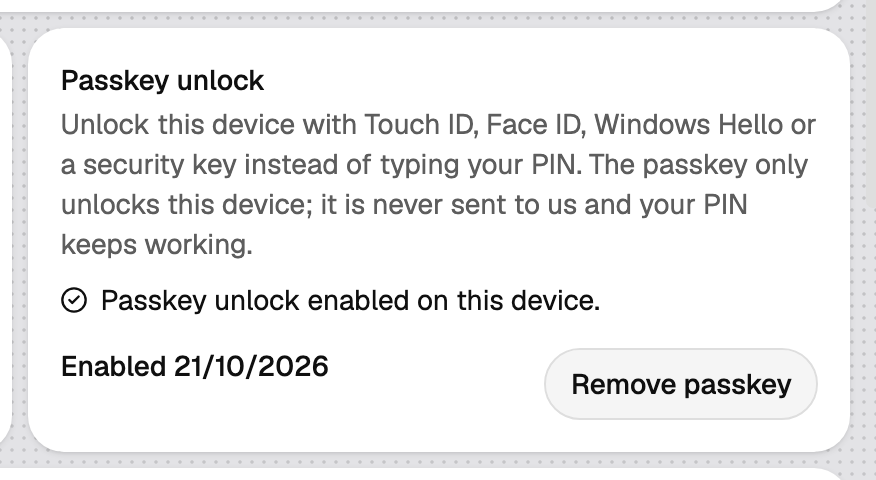
If you dismiss your browser's prompt, Databeamer reports Passkey setup was cancelled and nothing changes. If it reports that this passkey provider does not support unlocking, try a different authenticator or browser; see below.
Unlocking #
When you open Databeamer on a device with a passkey, the unlock screen lets you choose between Passkey and PIN.
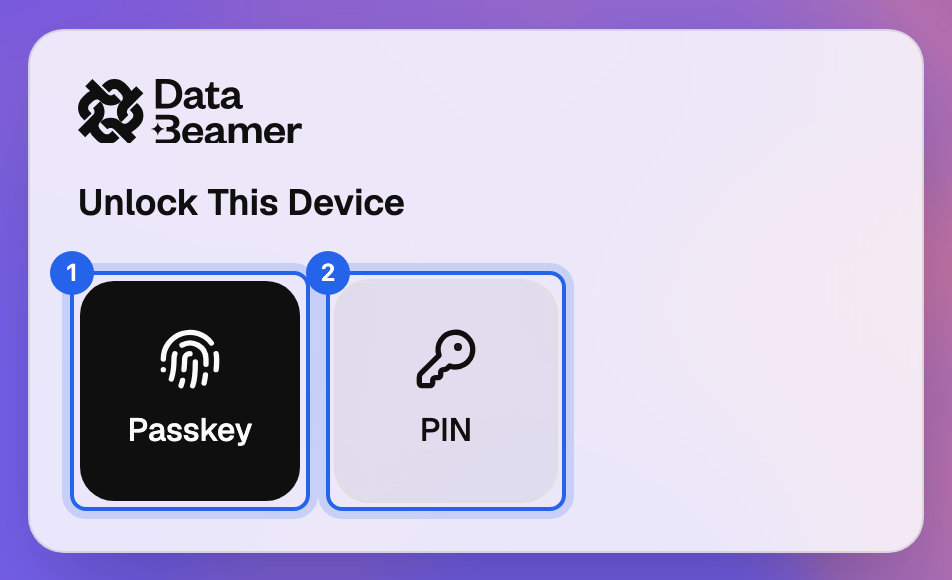
- Choose Passkey and confirm on your device. Databeamer shows Waiting for your passkey… until your device is done, then unlocks.
- Choose PIN to type it as before. The PIN screen also has the link Unlock with passkey.
If you decline the prompt, you return to the choice. If your passkey cannot be used, Databeamer says so and asks for your PIN; the passkey stays enabled.
Stay unlocked on reload under Settings › Security works with a passkey just as with the PIN: you then unlock once per browser session.
Removing it #
Under Settings › Security › Passkey unlock, choose Remove passkey. From then on this device asks for your PIN again. You can then delete the passkey itself from your password manager or operating system; Databeamer can no longer use it.
The passkey also disappears by itself when you add this device again, after Remove keys from this device, a device approval or your recovery phrase: it belongs to the key that gets replaced then. Enable it again afterwards. Changing your PIN leaves it in place. If the unlock screen tells you that your passkey no longer unlocks this device and has been removed, that is what happened.
Which passkeys work #
Databeamer needs a passkey that supports the WebAuthn PRF extension. That holds for the built-in authenticators of Apple, Windows and Android, for most security keys and for the major password managers, including 1Password. A provider that lacks the extension gets This passkey provider does not support unlocking when you enable it; choose a different authenticator or browser then. Databeamer cannot see your passkeys and does not manage them.
Lost device #
A passkey on a lost device gives a finder nothing without your fingerprint, face or security key. Still revoke the device as described in Devices and unlocking: afterwards it no longer unlocks your account, with passkey or PIN.