Getting started Guide
Create your account
Sign up, set up two-factor verification, choose a PIN and save your recovery phrase. Ten minutes, once.
Setting up Databeamer takes two steps: creating a login, and setting up the keys that make your data readable to you alone. The login is like any other account. The keys are what make Databeamer different, so this guide spends most of its time there.
1. Create your login #
Go to app.databeamer.eu. You arrive at the sign-in page of Databeamer's identity service. Choose Register, below the sign-in form.
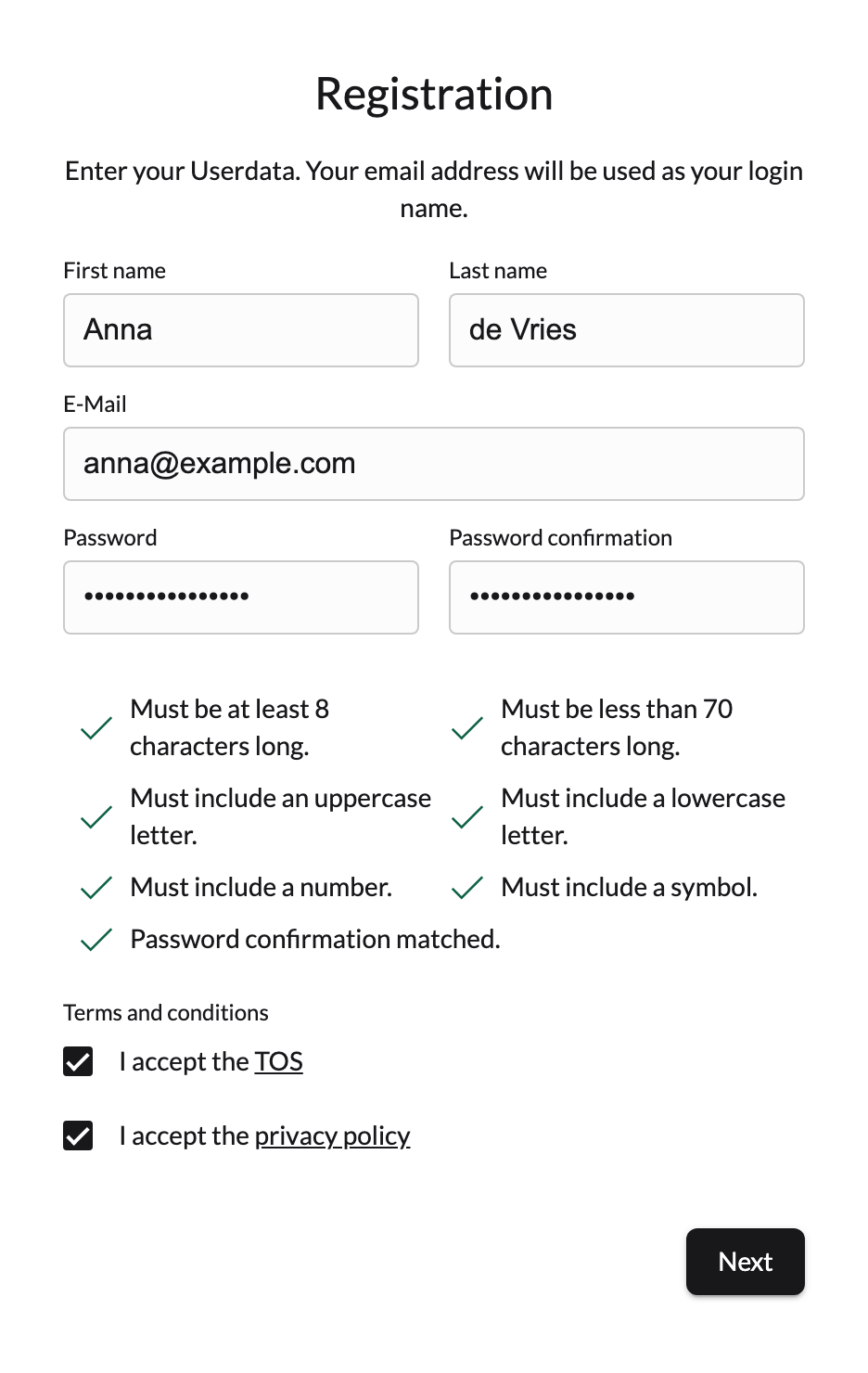
Fill in your first name, last name and email address, choose a password and accept the terms and the privacy policy. Then choose Next.
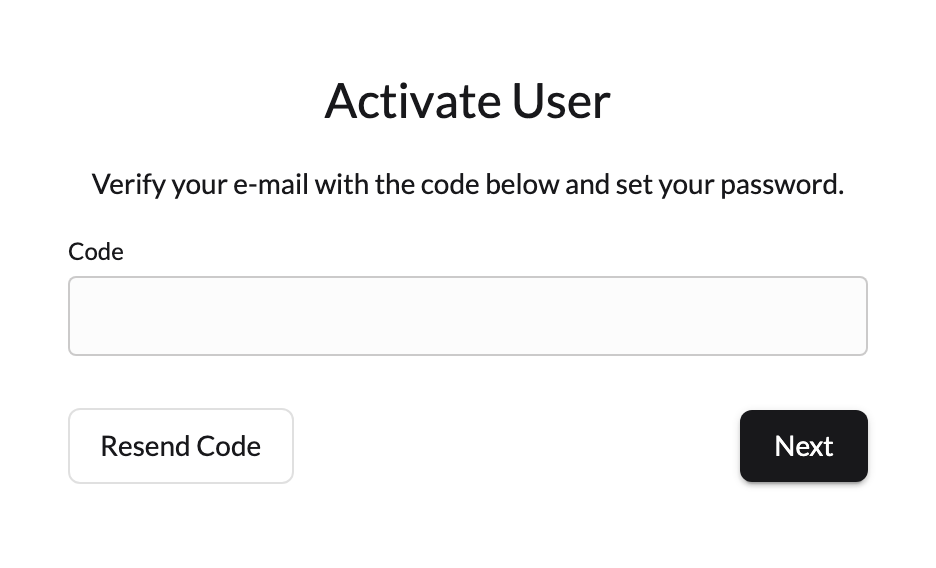
We send you an email with an activation code. Open the link in it, or type the code on the Activate user page, to confirm that the address is yours. Then sign in with your email address and password.
Set up two-factor verification #
On your first sign-in, Databeamer asks for a second step after your password. It is required, and every later sign-in asks for it too. On the 2-Factor Setup page, choose what you will use:
- Authenticator App: an app on your phone, such as Google Authenticator, Microsoft Authenticator or Authy, that shows a new code every thirty seconds. Works on any device you sign in from.
- Device dependent: Face ID, Windows Hello or a fingerprint on the device you are signing in from now. Quick, but tied to this device: if you sign in elsewhere, you need it with you.
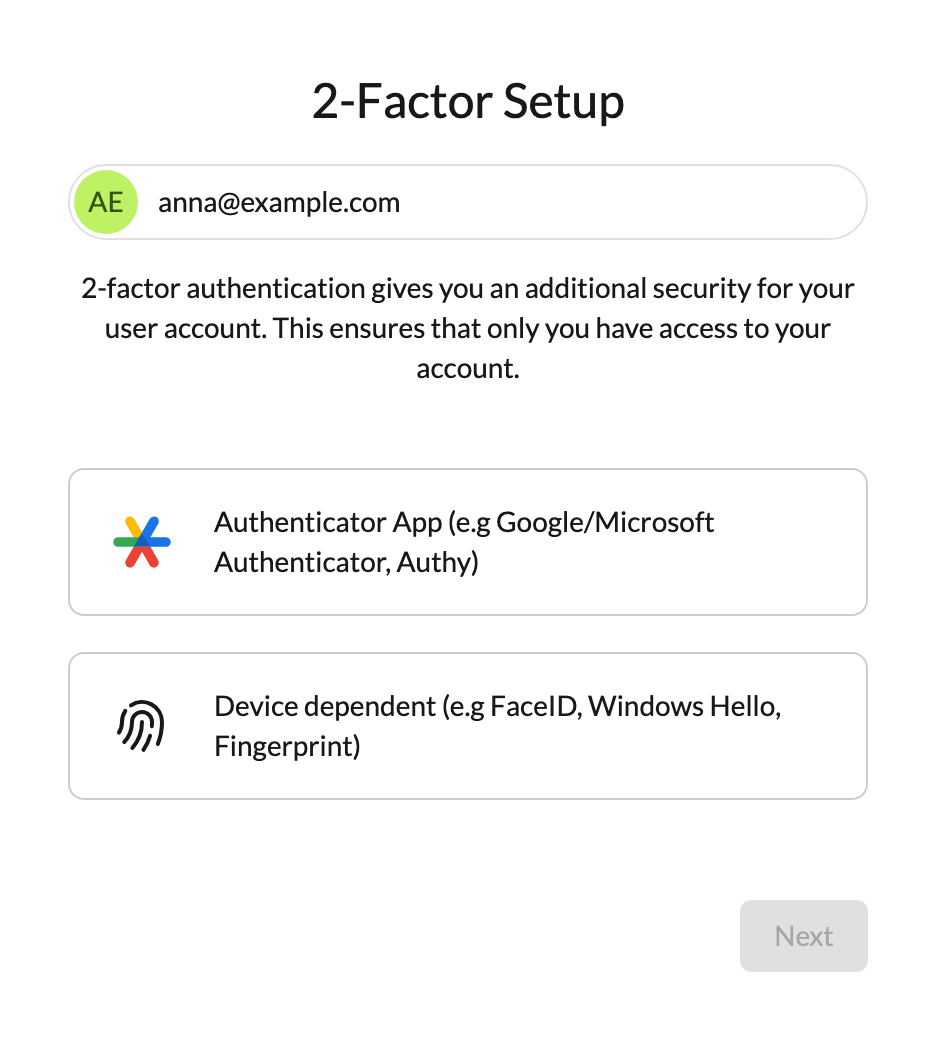
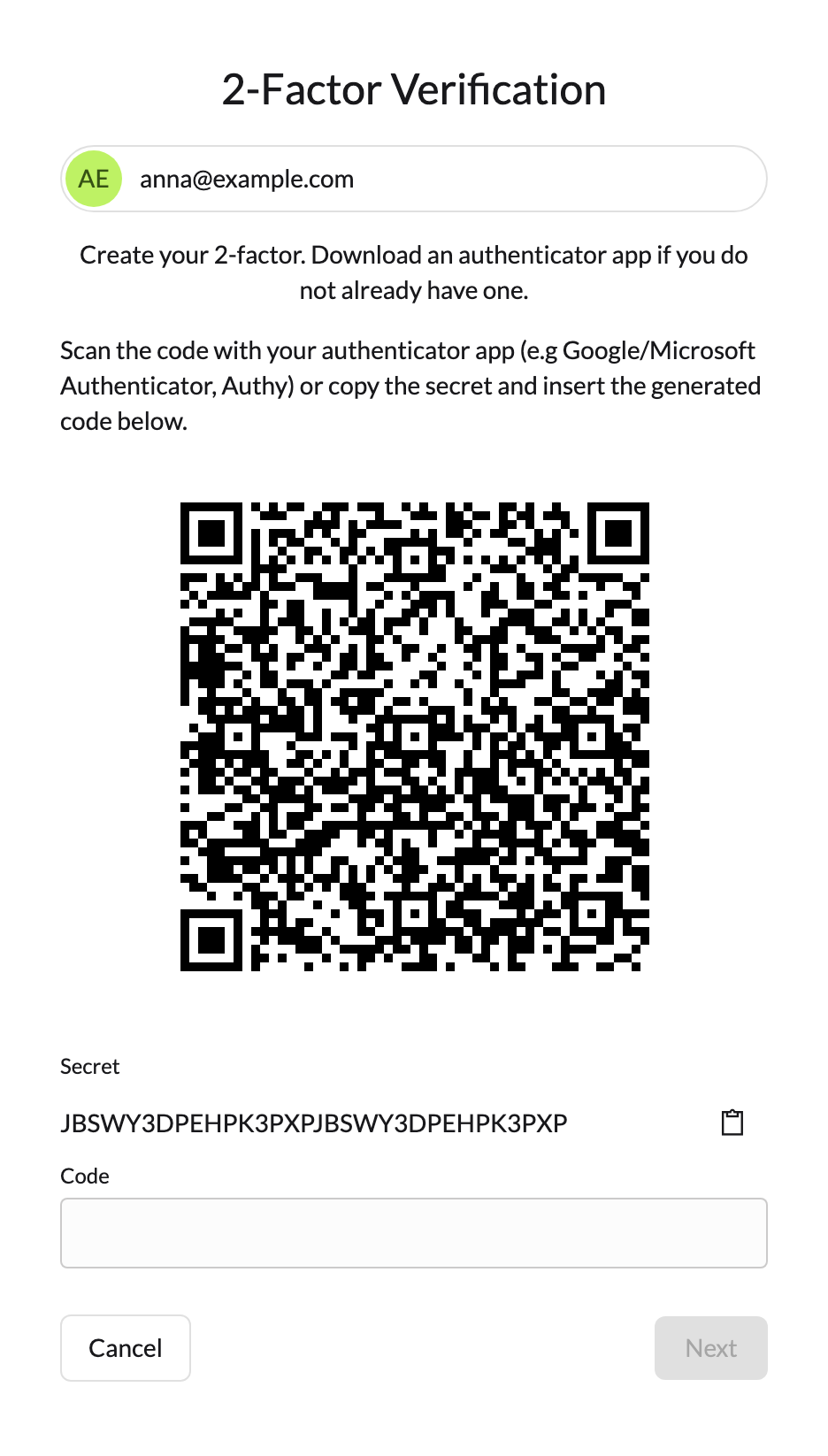
This guide continues with the authenticator app. Choose Authenticator App and Next. Open the app on your phone, choose "add account" there and scan the QR code on the 2-Factor Verification page. If scanning does not work, type the Secret into the app instead. The app now shows a six-digit code; type it under Code and choose Next.
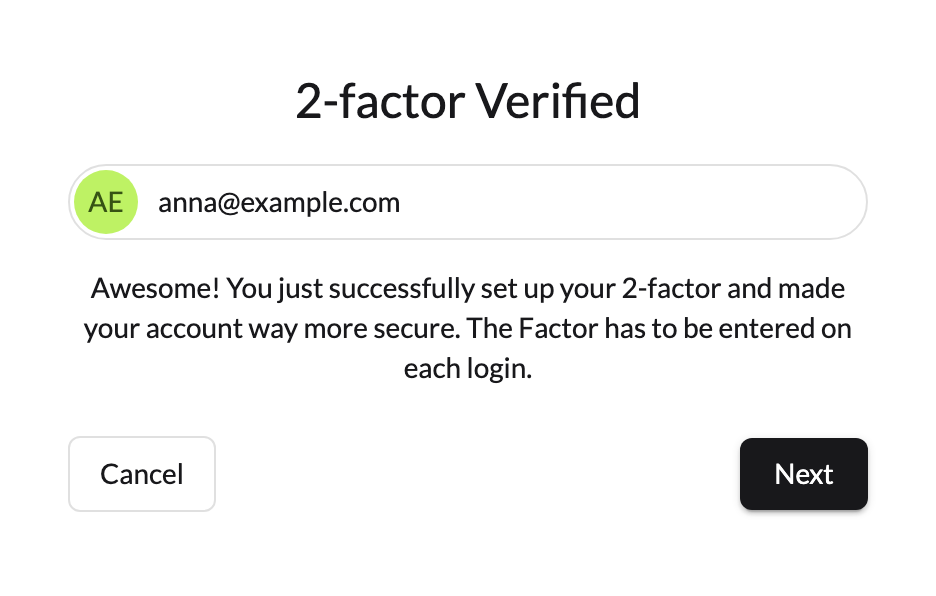
The 2-factor Verified page confirms it. Choose Next to continue to Databeamer.
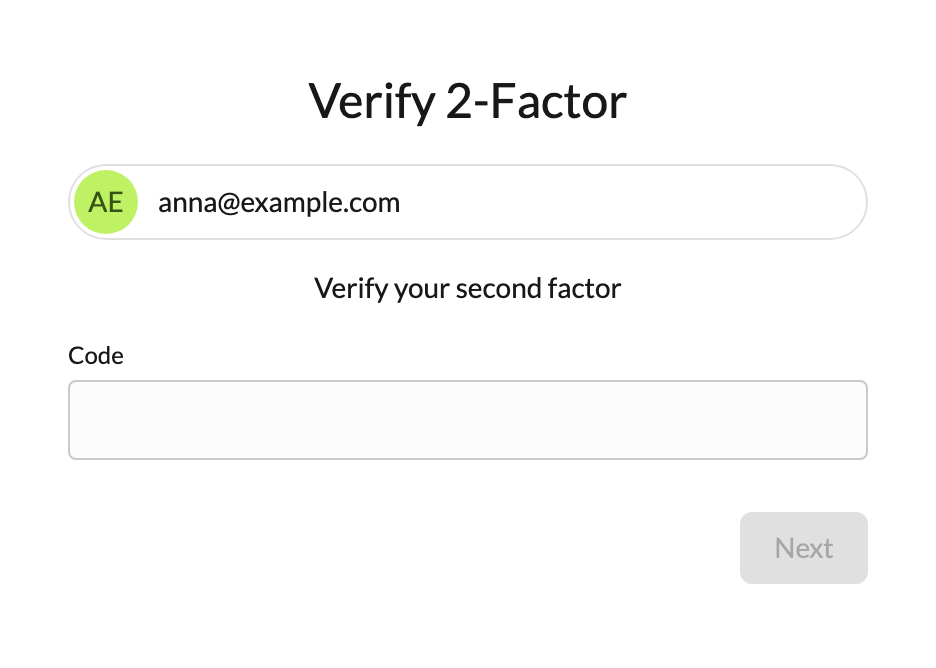
From now on, every sign-in asks for the code from your app after your password, on the Verify 2-Factor page. If you lose your phone, you cannot sign in without that code; see I cannot sign in.
Security detailsWhat is this?
The second step belongs to the login, not to your keys. Databeamer's identity service checks it and only then issues a session; the authenticator app's secret is held by that service, not by the Databeamer app. Your keys, PIN and recovery phrase play no part here: without a set-up device or your recovery phrase, a successful sign-in still opens nothing. See Devices and unlocking.
Your password and the second step protect the login only. They do not unlock your files; that is what the next step is for.
2. Set up your keys #
The first time you sign in, Databeamer opens Welcome to Databeamer and walks you through creating your keys. Choose Get Started and follow the steps in order.
Choose a PIN #
Pick a 6-digit PIN. The PIN unlocks Databeamer on this device only. Each device you add later gets its own PIN, and changing one does not change the others. Very simple PINs like 123456 are rejected.
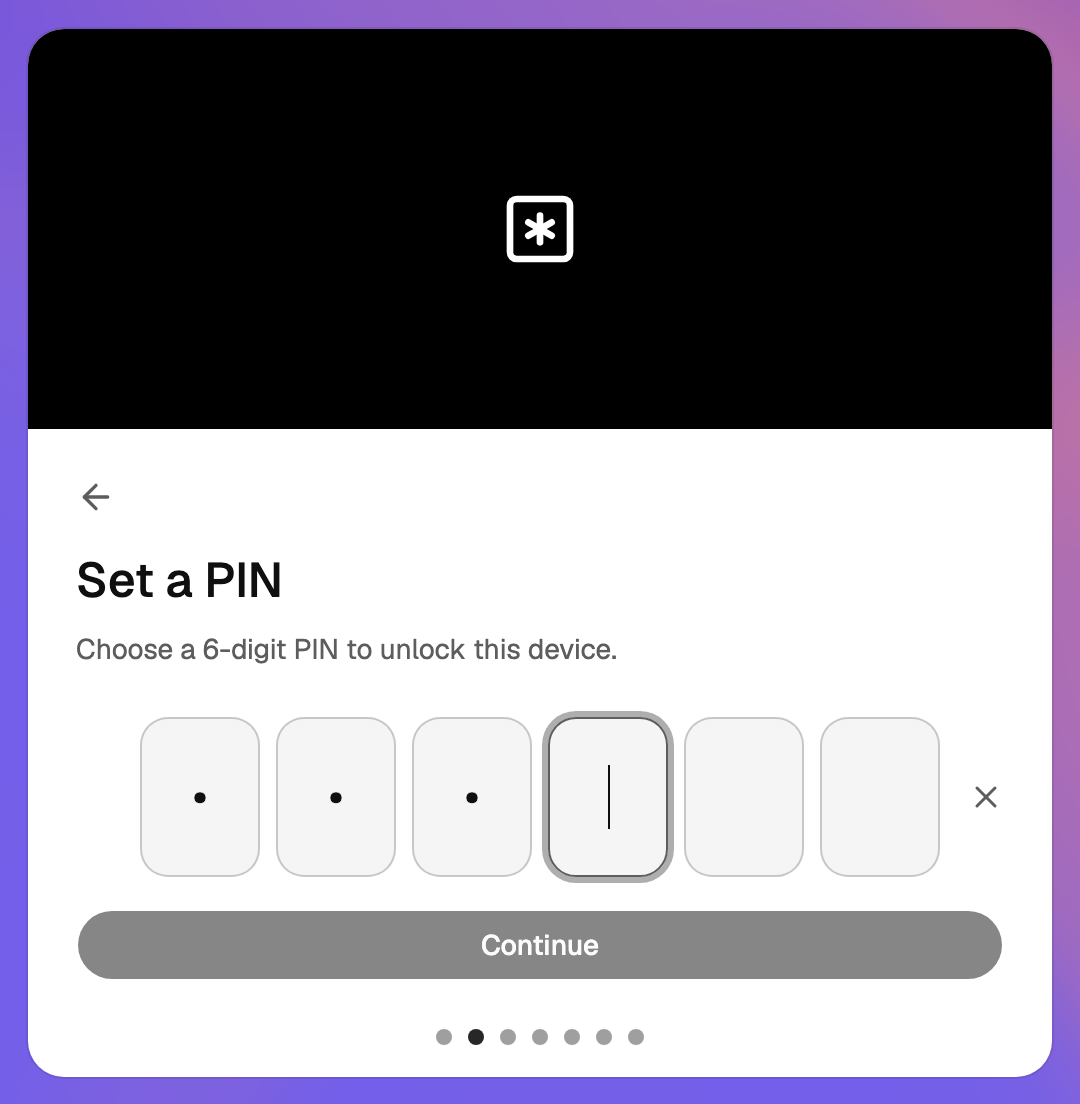
Your browser will ask for the PIN whenever you open Databeamer. If you prefer, you can later switch to passkey unlock with Touch ID, Face ID or Windows Hello.
Generate keys #
Databeamer now creates your keys on your device. This takes a few seconds and needs nothing from you. Only the public halves are sent to the server; the parts that can read your data never leave the device.
Security detailsWhat is this?
- The browser generates a random master key. It is never stored anywhere; it is rebuilt at each unlock and wiped from memory afterwards.
- Your identity keys are derived from the master key: a hybrid key pair for key exchange (X25519 + ML-KEM-768) and a hybrid key pair for signatures (Ed25519 + ML-DSA-65). An attacker must break both the classical and the post-quantum algorithm.
- The master key is split with Pedersen verifiable secret sharing, threshold 2 of 3: a device share, a server share and a recovery share. No share is derived from the PIN or the password.
- The device share is sealed on the device under a key derived from the PIN with Argon2id. The server stores the server share and the public keys, and holds nothing derived from the PIN.
- A personal group with its own key set is created, so personal files use the same key model as shared ones.
Save your recovery phrase #
You are shown a list of 24 words. This is your recovery phrase. Together with the part we keep on the server, it can rebuild your keys if you ever lose all your devices.
Security detailsWhat is this?
The 24-word phrase is the only thing that opens the recovery share. The phrase is never sent to the server and cannot be reconstructed from the password or the PIN. See Recovery phrase and shares.
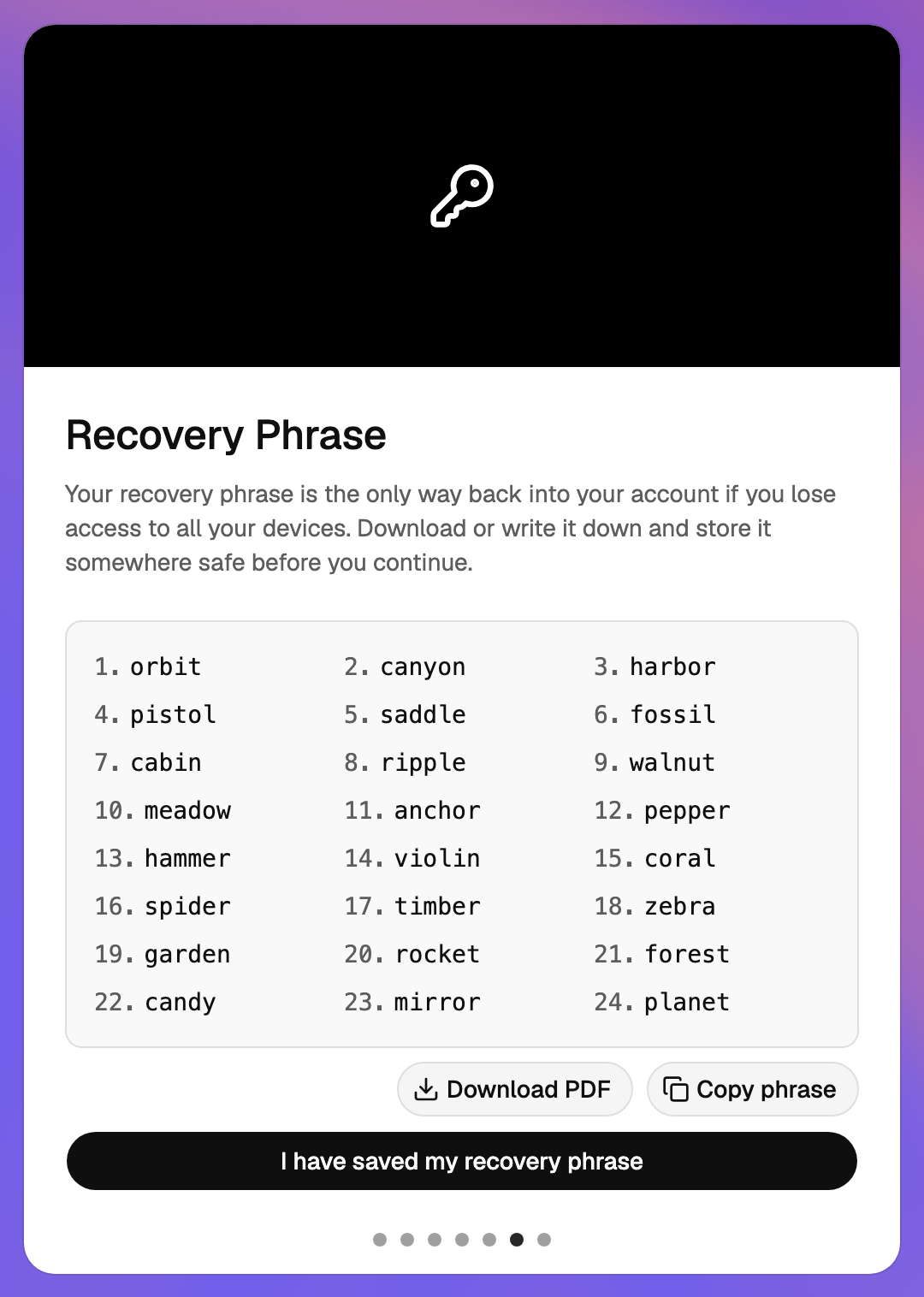
- Use Copy phrase or Download PDF and store it somewhere safe: a password manager, a printed copy in a locked drawer, or both.
- Do not keep it only on the device you are setting up. If that device is lost, the phrase is lost with it.
- Choose I have saved my recovery phrase. Databeamer asks once more whether you are sure; confirm with Yes, I have stored my phrase.
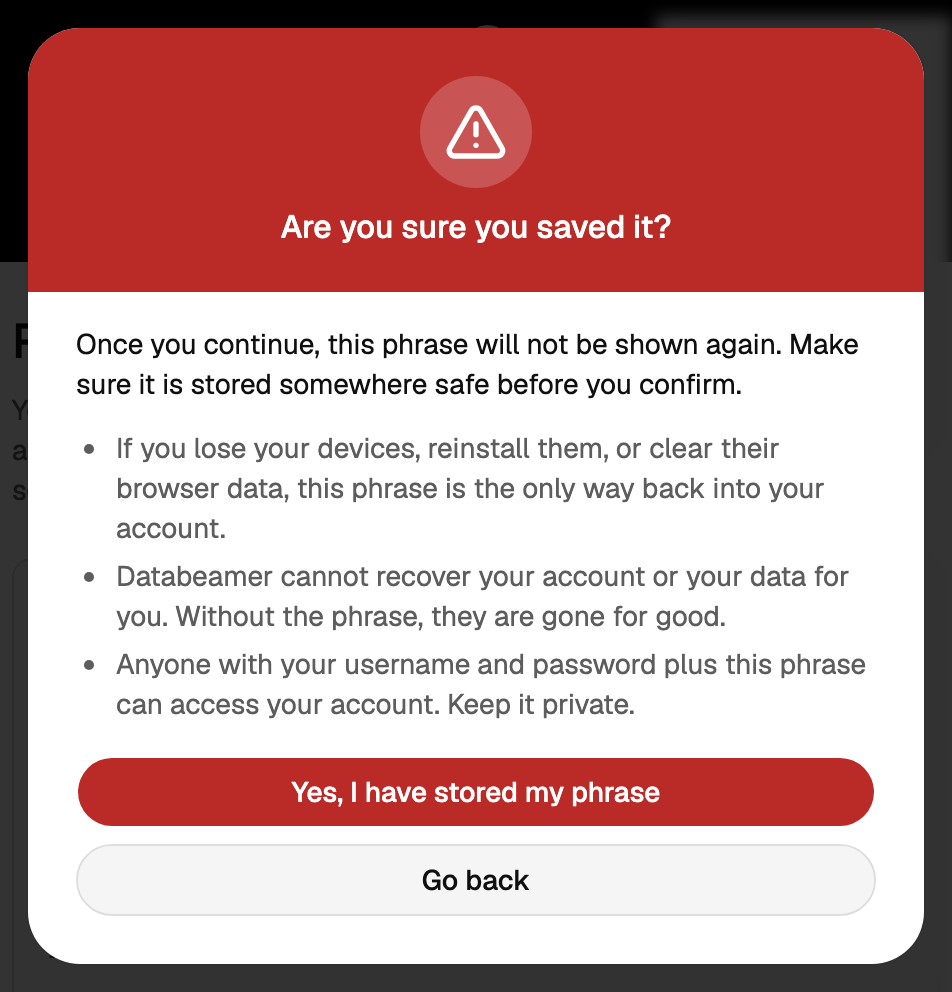
This step cannot be skipped, and for good reason. Databeamer cannot recover your account for you. Without the phrase or a signed-in device, your data is gone.
3. You're in #
All set! Choose Get Started. The dashboard offers a short tour and a Get started checklist: send a transfer, request files, upload to Drive, or create an organisation.
Next: Find your way around.