Getting started Reference
Screen layout
This overview gives the names we use for all parts of your screen, on your computer and on your mobile, each with a short note on where to find it.
For what the areas of the app are for, see Find your way around.
Desktop #
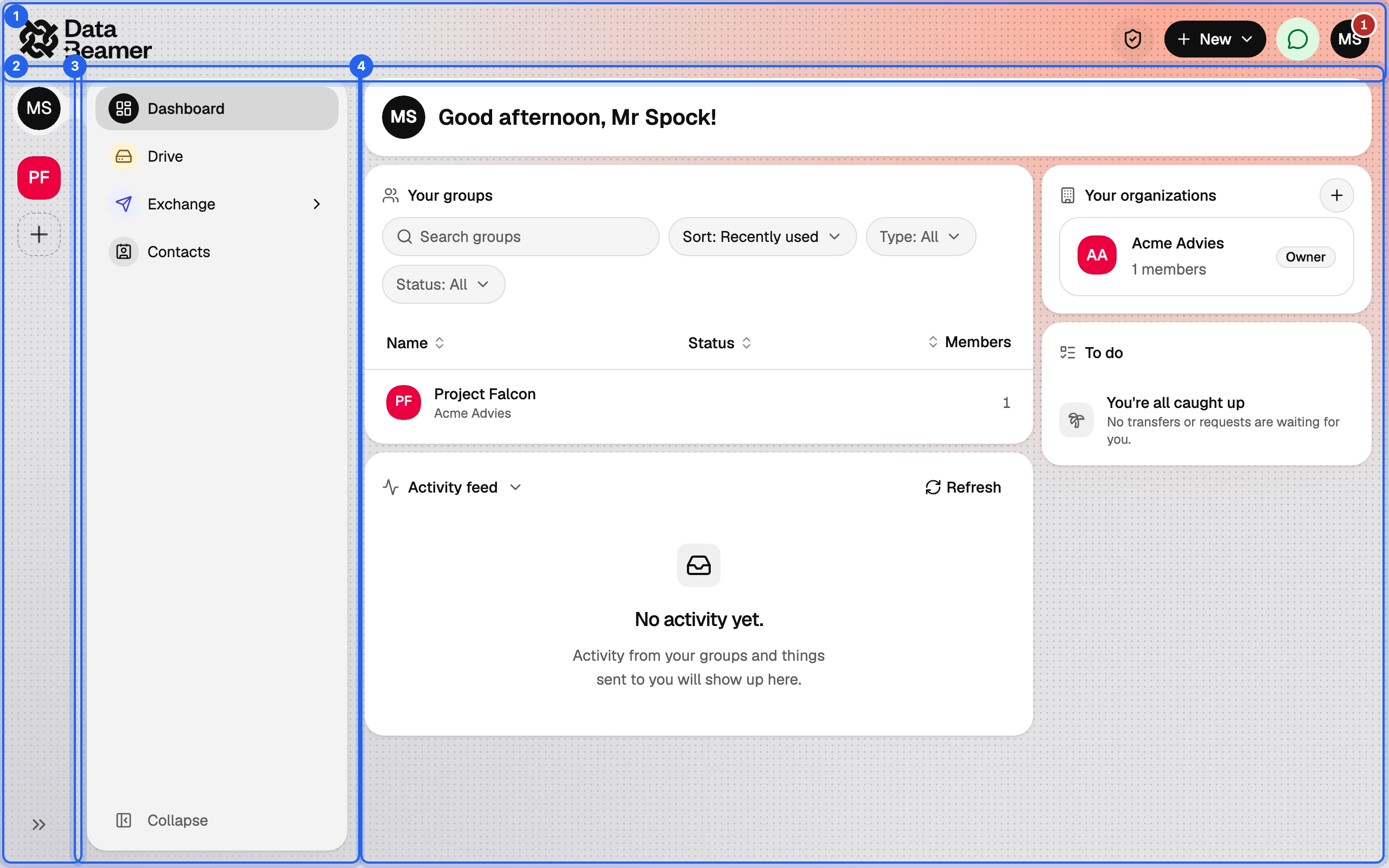
Top bar #
This is the wide bar at the top of the screen. The Databeamer logo is always at the top left. Working inside a group? Then next to the logo you find a breadcrumb trail (where you are). On the right you find the shield with encryption information, the New and Chats buttons, and your own user menu.
Groups rail #
This is the narrow vertical column on the far left of your screen. Each icon here stands for a group you are a member of. The icon of your personal space is always at the top. Click an icon to go straight to that group. Below the group icons is a New group button (+). It lets you create a new group. No groups yet? Then this rail hides itself automatically. With the arrow at the bottom you can widen the rail so you also see the group names.
Sidebar #
The navigation for where you are: Dashboard, Drive, Exchange and Contacts in your personal space; Dashboard, Chat, Drive, Exchange and, for owners and admins, Settings inside a group. Collapse at the bottom shrinks it to icons.
Content area #
Everything to the right of the sidebar: the page you are on, laid out as one or more panels.
The top bar's buttons #

- Encryption indicator: the shield. It shows that your keys are loaded and briefly animates while something is being encrypted or decrypted. Click it for the details.
- New: starts a transfer, request, group or organisation from anywhere. See the New menu.
- Chats: opens the Chats window with your direct messages and group chats. A badge shows unread messages.
- User menu: your avatar. Notifications, settings, dark mode, what's new, feedback and sign out.
Inside a group #
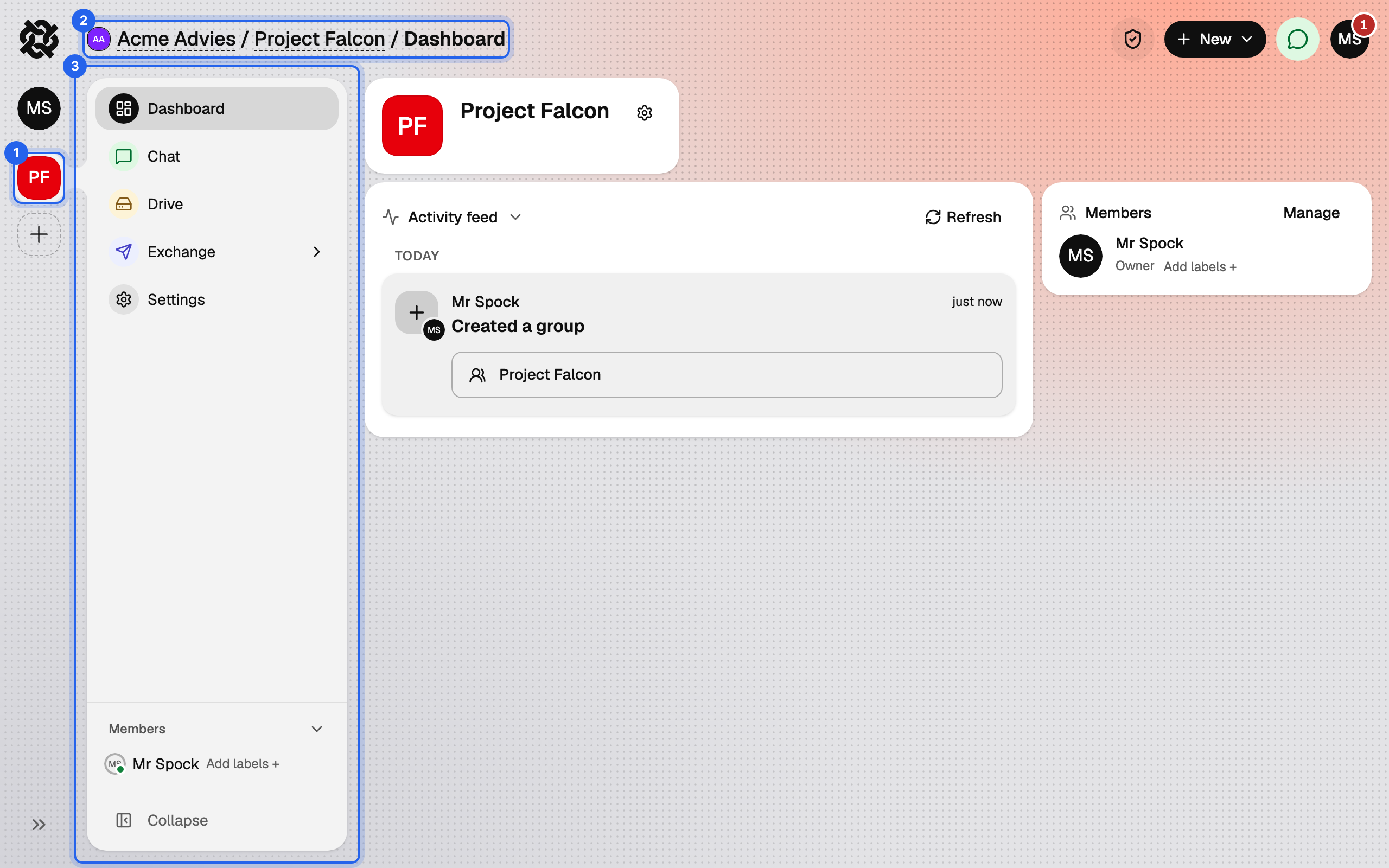
Breadcrumb trail #
Replaces the logo in the top bar while you are inside a group: organisation, group, page. Each part is a link, so you can jump up a level.
Group sidebar #
The same place as the personal sidebar, with the group's pages. The Members panel at its bottom lists who is in the group and who is online.
The Chats window #
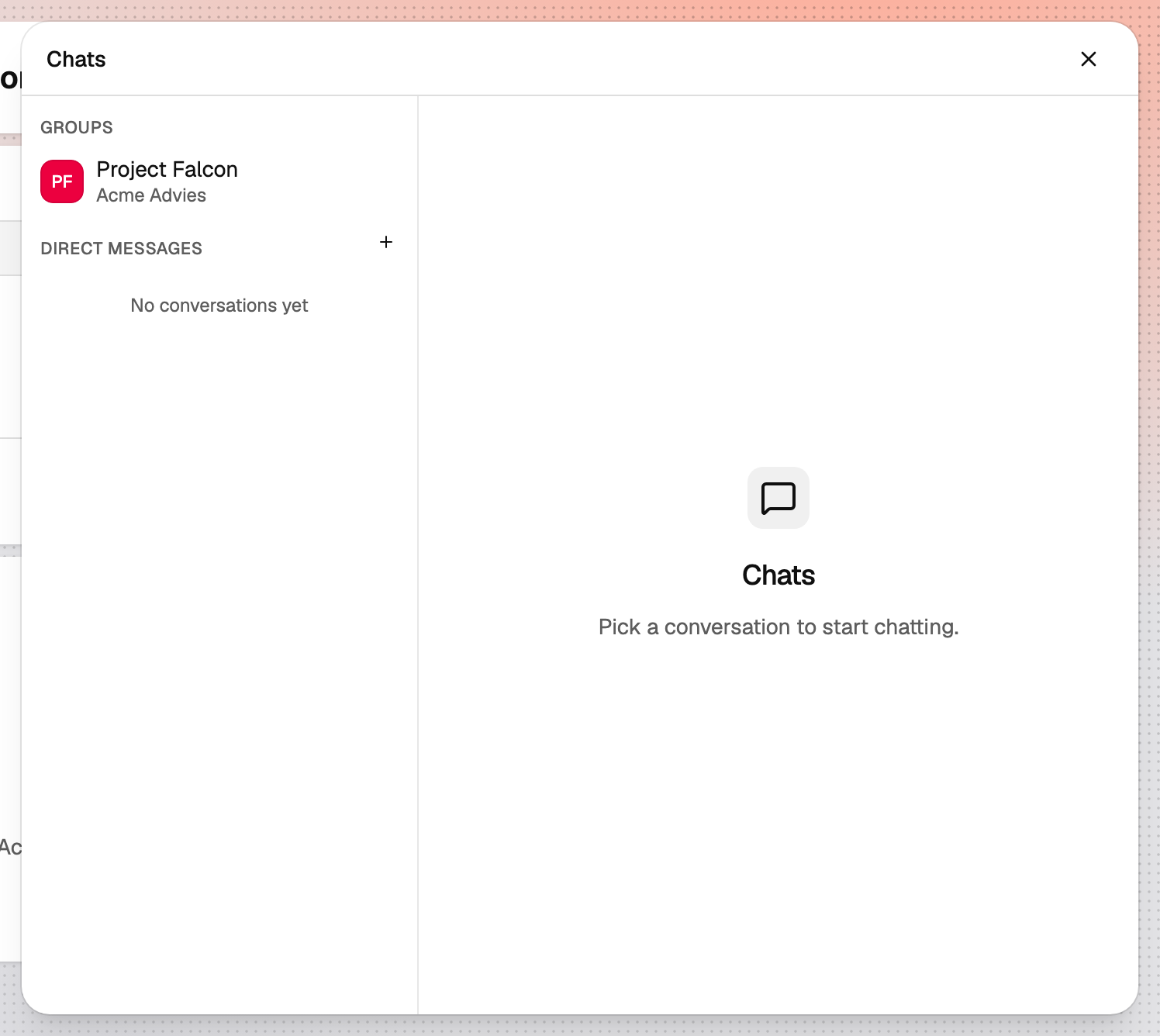
A floating window that opens from the Chats button and stays over whatever page you are on. On the left is the conversation list, with groups and direct messages; on the right the thread of the conversation you picked. Close it with the cross; your place in the app is kept.
Floating windows, panels and sheets #
- Floating window: a form that opens over the page and can be moved aside: New Transfer, New Request, New Secure Mail and the Chats window.
- Panel: a card inside the content area, such as Your groups or To do on the dashboard. The Uploads and Downloads panels appear at the bottom right while something is in progress.
- Sheet: a pane that slides in from the right with details about one item, such as a file's Details.
- Dialog: a small box in the middle that asks you to confirm something.
On your phone #
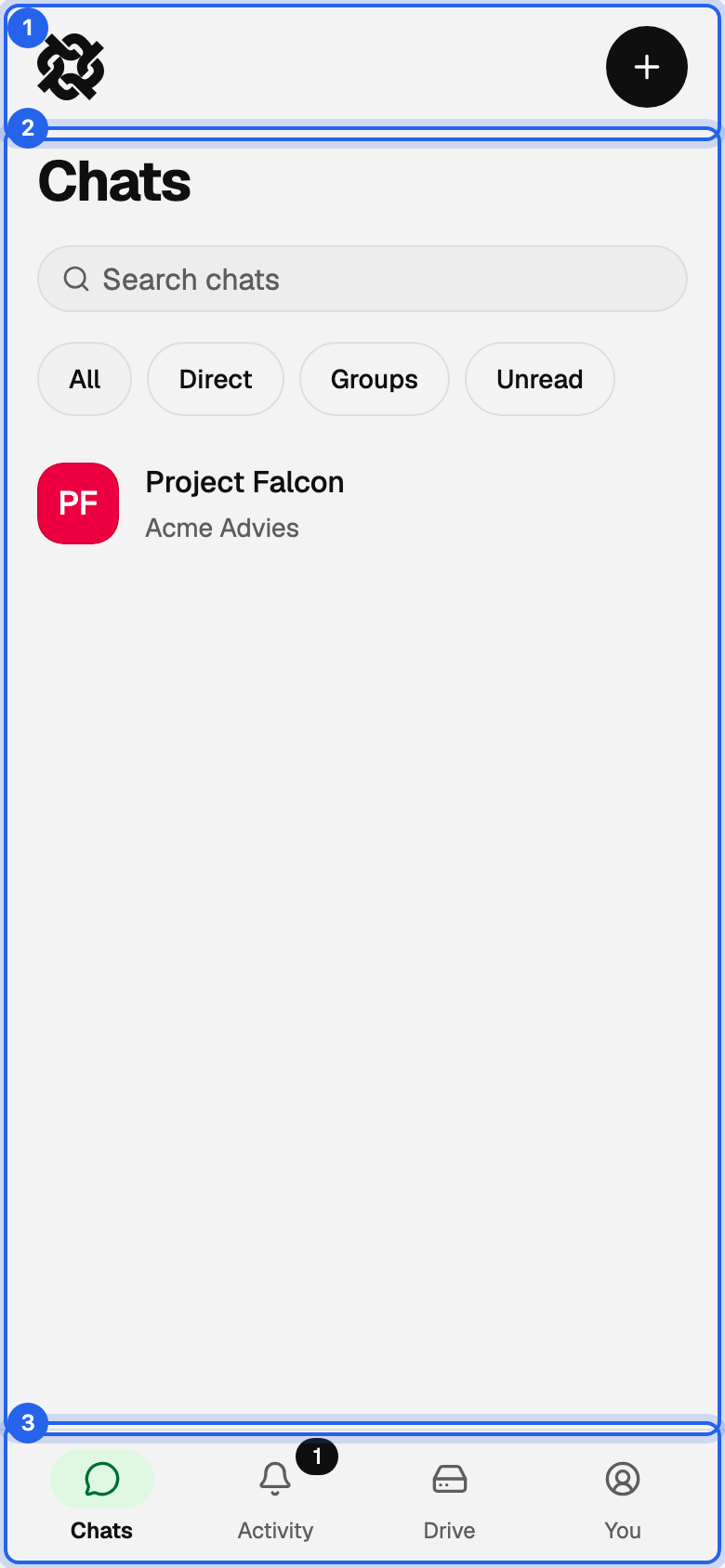
Top bar #
The logo and, on pages that have one, a New button. Inside a group it shows a back chip to the place you came from and the group's tools.
Page #
The content of the tab you are on. Lists run edge to edge; other pages sit on a white card.
Tab bar #
The four tabs along the bottom: Chats, Activity, Drive and You. The badge on a tab counts what is waiting for you there. It hides while you are reading a conversation or typing.