Transfers Guide
Share a confidential document with someone without a Databeamer account
Send a signed contract as a transfer to a client without an account: passphrase or email code, expiry, what the client sees and how you follow the transfer.
The situation. You want to share a signed contract with a client. Sending it as an attachment to a regular email is not an option for security reasons, but your client does not have a Databeamer account yet and does not want to learn a new application first.
With a transfer you send the document securely to your client. They receive a link by email and can open and download the document in the browser. No account or software installation is needed.
In this example you send the contract with a passphrase that you share with the client separately.
1. Create a transfer #
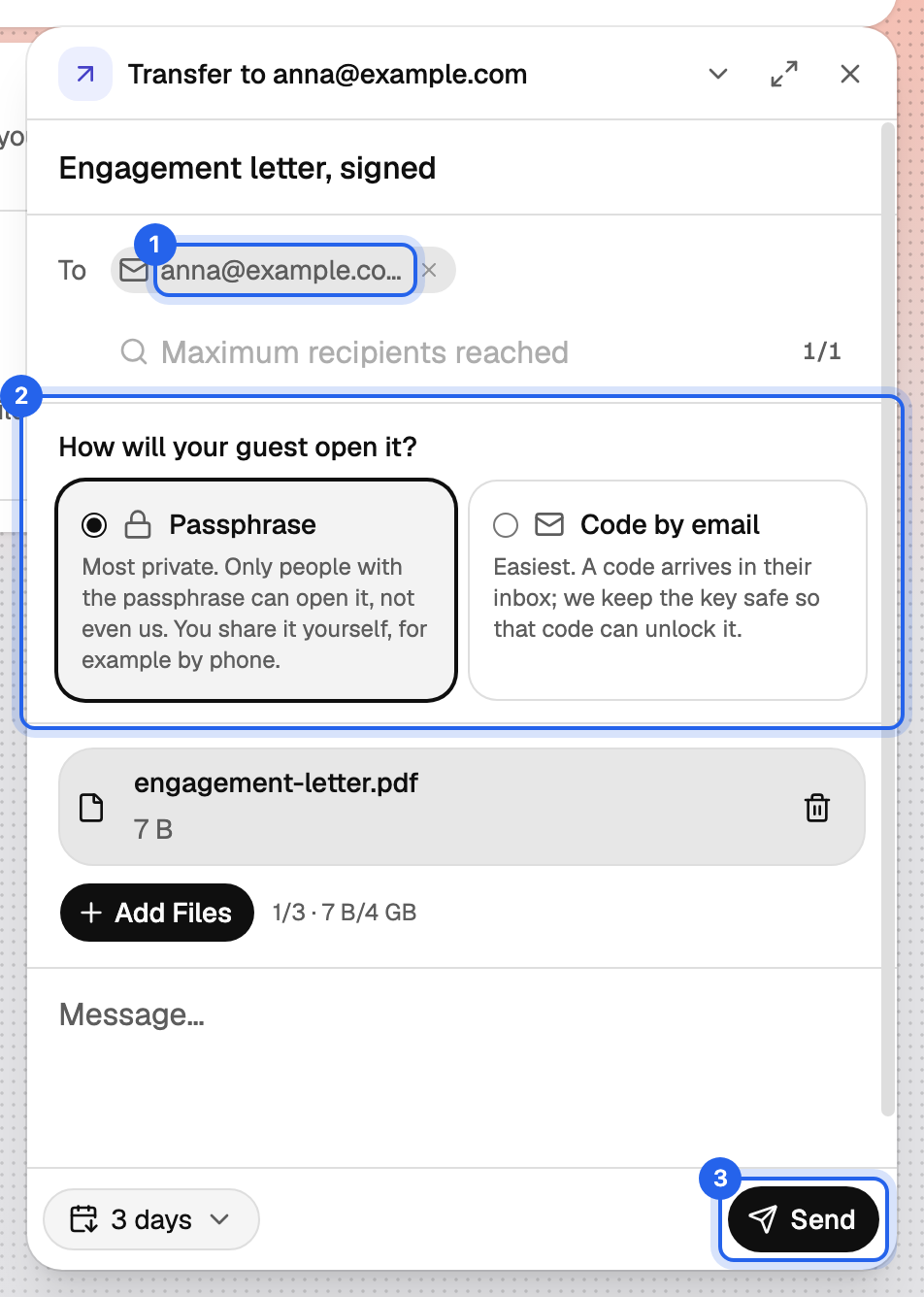
Drag the contract from your desktop or file browser onto the Databeamer window, or choose New Transfer from the New menu. You can also go to Exchange › Transfers and create a new transfer there.
Give the transfer a recognisable Title, for example Engagement letter – signed. You can also add a Message to explain something to the recipient. Both the message and the files are encrypted.
2. Add the client as a guest #
Under To, enter the client's full email address and choose Add … as a guest. Databeamer sends the secure link to this address.
Under How will your guest open it? you choose how the client gets access. You have two options:
- Passphrase: you share the passphrase yourself through another channel, for example by phone. The link from the email alone is then not enough to open the files.
- Code by email: when opening, the client requests a one-time code that is sent to the same email address. This is simpler, but anyone with access to that mailbox can in principle open the transfer as well.
For this example we choose Passphrase. It is the more privacy-friendly option of the two, because access does not depend solely on the recipient's mailbox.
3. Decide how long the transfer stays available #
With Expires after you decide how long the files remain available. Depending on your plan, you can choose from the available periods of 1, 3, 7 or 30 days.
Choose a period that gives the client enough opportunity to open and download the document. For a document that must be collected quickly, a short period may be appropriate.
After expiry the files are removed. The transfer record and the associated activity data remain in your overview.
Send and keep the passphrase #
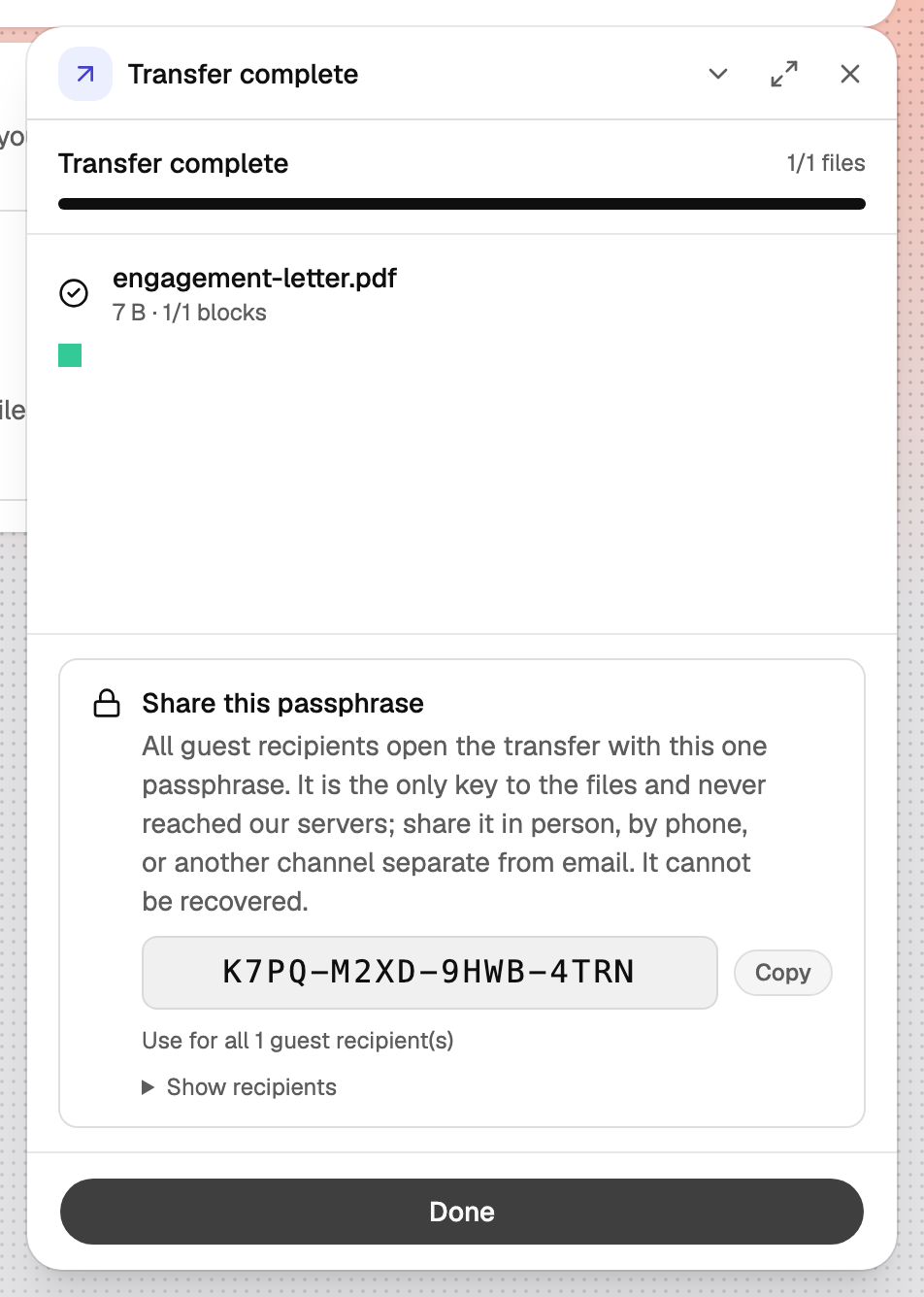
Click Send. Once the upload has finished, Databeamer shows the Share this passphrase window. The passphrase looks something like this: XXXX-XXXX-XXXX-XXXX.
Copy the passphrase before you close the window. It cannot be shown again afterwards. Databeamer does not keep the passphrase either.
4. Share the passphrase separately #
The client receives an email with the link to the secure transfer. Pass on the passphrase through another channel, for example during a phone call or through a suitable secure messaging channel.
Do not send the passphrase in the same email as the link. The two are deliberately kept separate, so that someone who only intercepts the email cannot immediately open the files too.
5. What the client sees #
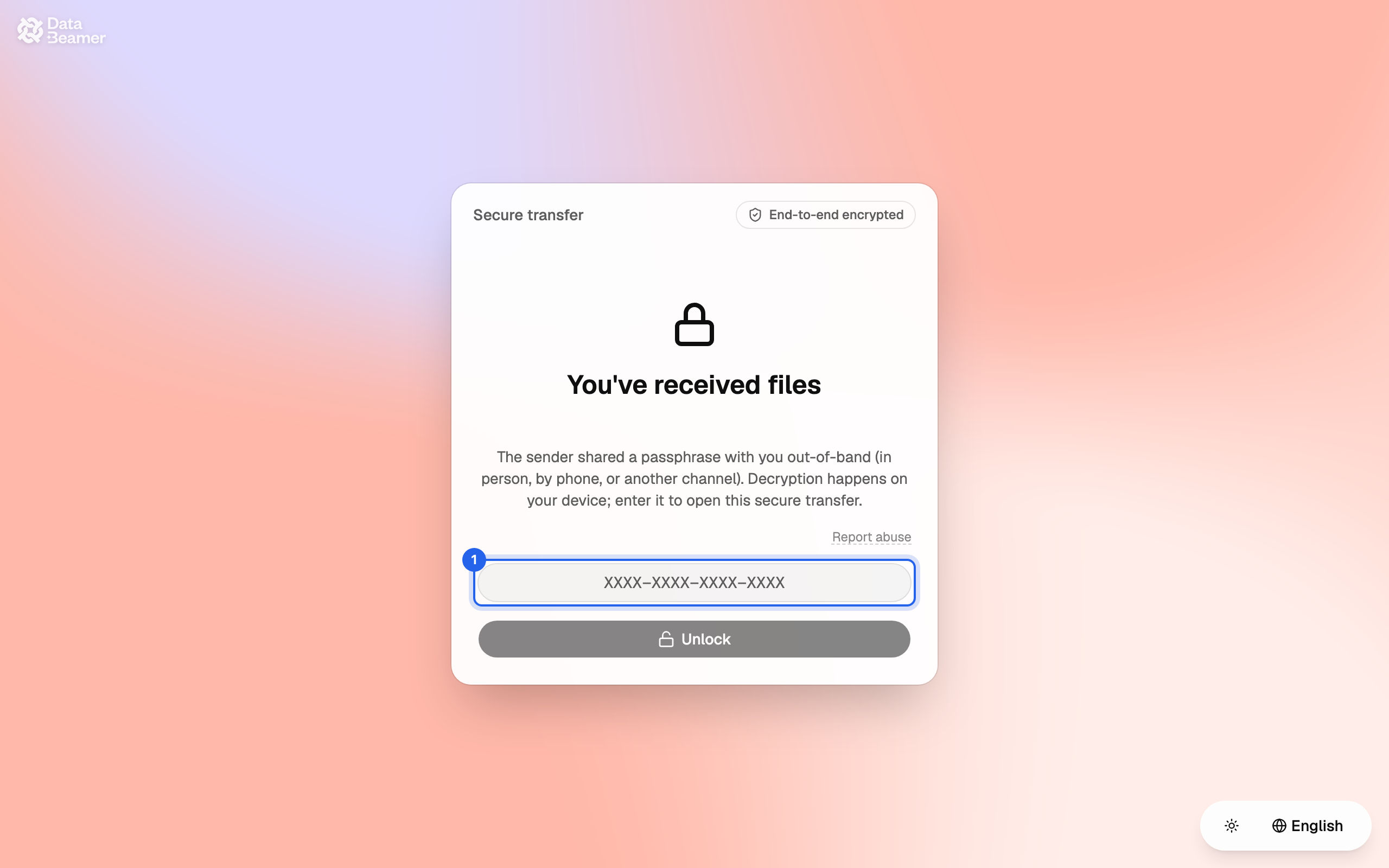
The client opens the link in the email and lands on the Secure transfer page. If your organisation has set up its own branding, that page can be shown in it.
The client enters the passphrase and chooses Unlock. The message and the files are then available to view and download. The files are decrypted in the browser.
The client does not need to create an account for this. They can choose to create their own Databeamer account, for example to send files back securely later or to keep received files in their own Drive.
The full explanation for the recipient is in Open a transfer you received.
6. Follow the transfer #
After sending, you find the transfer under Exchange › Transfers. Under Activity you can see which activities were recorded, including when a file was downloaded.
That helps, for example, when you want to check whether the client has already collected the document. Keep in mind that a download is not the same as confirmation that the client has read or reviewed the document.
Has the transfer expired or does the client no longer have access? Then you can send a new transfer if needed.
If you work with this client more often #
For a one-off exchange, guest access is convenient. If you work with the same client or person more often, it may be more pleasant to let them use their own Databeamer account.
After they have created an account, add the client to your Contacts. In subsequent transfers you can select the client as an account user. The recipient is then offered the transfer in Databeamer and can accept or decline it. The files are encrypted for the recipient's keys.
Security detailsWhat is this?
In a transfer, the files are encrypted on your device before they are sent. The chosen unlock method determines how the guest gets access:
- Passphrase: the guest's key is derived from the passphrase. Databeamer does not keep the passphrase and the server cannot open the files with it.
- Code by email: the key is managed through a secure key management service and released after verification of the email code. With this method, Databeamer can open the files during that verified access. This is a deliberate exception to the zero-knowledge model.
More information is in the technical explanation at Send a transfer.