Requests Guide
Request documents and information securely
Ask someone outside your organisation for documents with a request: who submits and who reads, which files you need, when the request ends and how you process submissions.
The situation. You need documents or information from someone outside your organisation. For example from a new client, a supplier, a partner or a resident. You want to make clear what you need and receive the information securely, without sensitive files being exchanged by email.
With a Databeamer request you ask for information through a secure link. You indicate which files or details you need, and the recipient can supply them without needing a Databeamer account themselves.
1. Create a request #
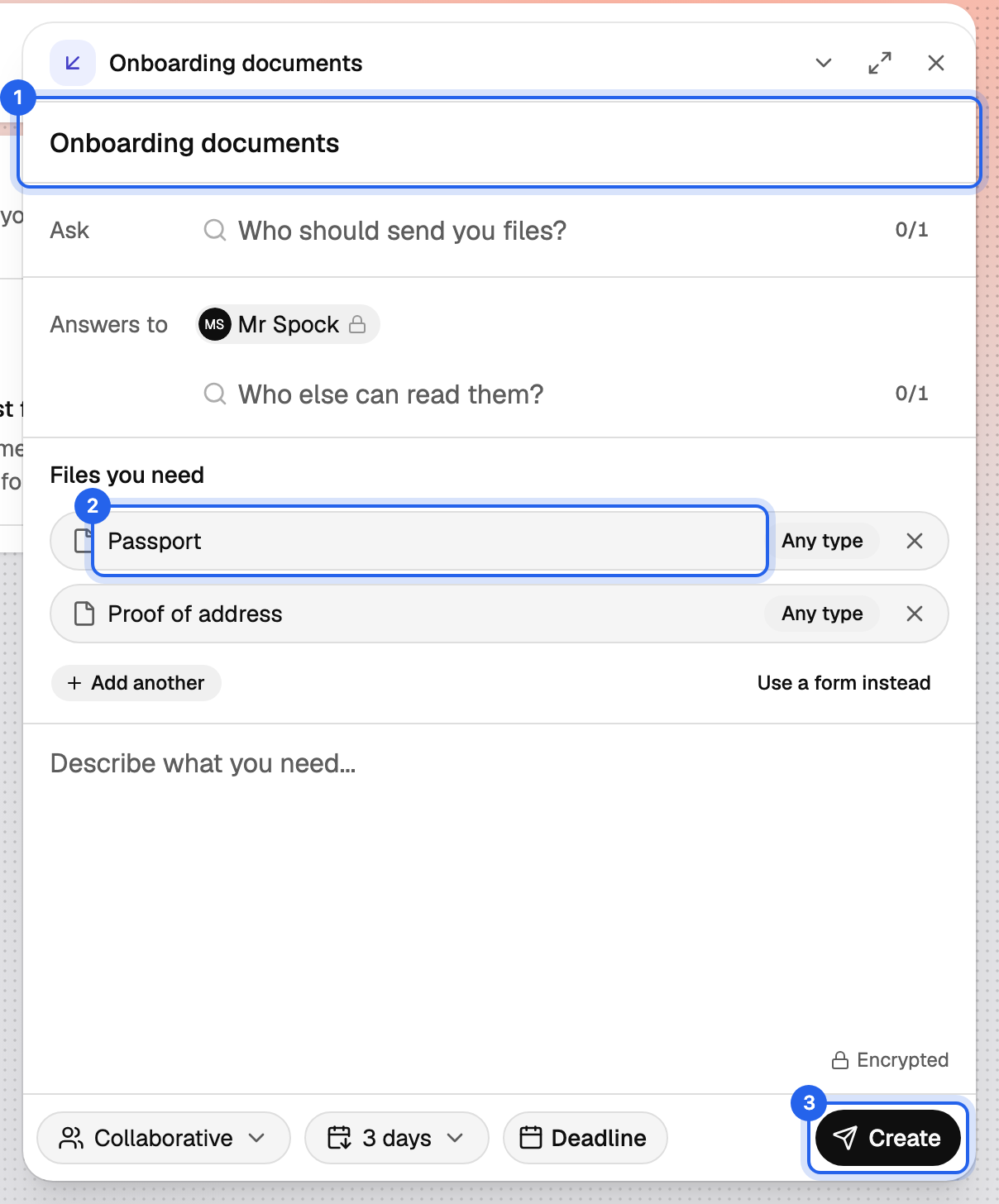
Choose New Request from the New menu. Give the request a recognisable title, for example Documents for a new client or Information needed for an application.
The title is visible to the recipient. So choose a name that makes clear what the request is about, without putting unnecessarily confidential information in the title.
2. Decide who supplies the information and who receives it #
Under Ask, enter the email address of the person or party you need information from. A Databeamer account is not needed for that. If that person has no account, type the full email address and add the person to the request as a guest.
Under Answers to you indicate who may receive and read the submissions. You are always included. Optionally add a colleague who processes the information further.
Are you asking for information that belongs to a team or project? Then create the request within the relevant group. That way the group members with access can handle the submissions together.
If you create a request from a group, all group members automatically have access to that request and all answers that come in. So when creating it, you do not need to add your group members under Answers to.
3. State clearly what you need #
Under Files you need, add a separate slot for each document you want. Think for example of:
- Proof of identity
- Proof of address
- An overview of income or bank statements
Give each slot a clear name. Optionally, indicate which file format (file type) you would like to receive. That gives the request more direction and avoids unnecessary follow-up questions.
You can also add a Message. Explain in it why you are asking for the information, what the recipient should bear in mind and when you need the information.
Only ask for the details you actually need. Especially with sensitive documents, it is wise to think in advance about the purpose of the request and which information is necessary for it.
4. Set when the request ends #
When creating the request you can decide several settings:
- Fulfillment: decide how the request handles submissions. There are three variants: collaborative, individual and open.
- Retention: decide how long the files remain available within the request.
- Deadline: set when the request should close. After the deadline, no new submissions can be made through the link.
Choose settings that fit the request. Do you need all documents before you can continue? Then a clear deadline can help to organise the delivery.
Read more about these settings in Create a request.
Choose Create to make the request ready.
5. Share the link #
The recipient can open the request through an email from Databeamer. You can also copy the Submission URL and share it yourself, for example in a message in which you explain the request.
The link takes the recipient straight to the page where the information can be supplied. No Databeamer account or installation is needed.
6. What the recipient sees #
The recipient sees the requester's name, the message and the fields for the requested files. That makes clear which information is needed and where it should be supplied.
The recipient selects the files and chooses Submit. After sending, the confirmation Submitted! appears. If a wrong file was submitted by mistake, the submission can be retracted during the period available for that.
The files are encrypted in the recipient's browser for the keys of the authorised recipient(s). The content is therefore not readable by other parties that only have access to the server.
The full explanation for the recipient is in Answer a request.
7. View and process submissions #
When someone supplies information, you receive the New submission notification. Open the request and go to Submissions to view the supplied files.
Do you want to keep the files for further use? Then choose Export to Databeamer Drive to copy them to a suitable folder. The files in Drive are then independent of the request's retention period.
When choosing the folder, think of the people who need to process the information further. If the submission belongs to a shared project or a team, the relevant group's Drive may be a suitable place.
Asking for the same information regularly? #
Do you ask for the same details more often, for example when onboarding new clients or for recurring applications? Then you can reuse the same set-up.
If you want people to be able to open a request themselves, for example from your website, you can also publish an open form. More information is in Publish a form.
Security detailsWhat is this?
A request is meant to ask for and receive information securely. The files are encrypted on the submitter's device before they are sent. The content can be read by the authorised recipient(s), not by everyone who knows the link.
The access rights, retention period and set-up of the request partly determine how the received information remains available. If you export the files to Drive, the access rights of the chosen Drive or group apply from then on.
With sensitive personal data, also think about which information you ask for, who needs access and how long you want to keep the data.