Getting started Guide
Find your way around
The dashboard, the sidebar, the New menu and the phone layout.
On desktop and laptop #
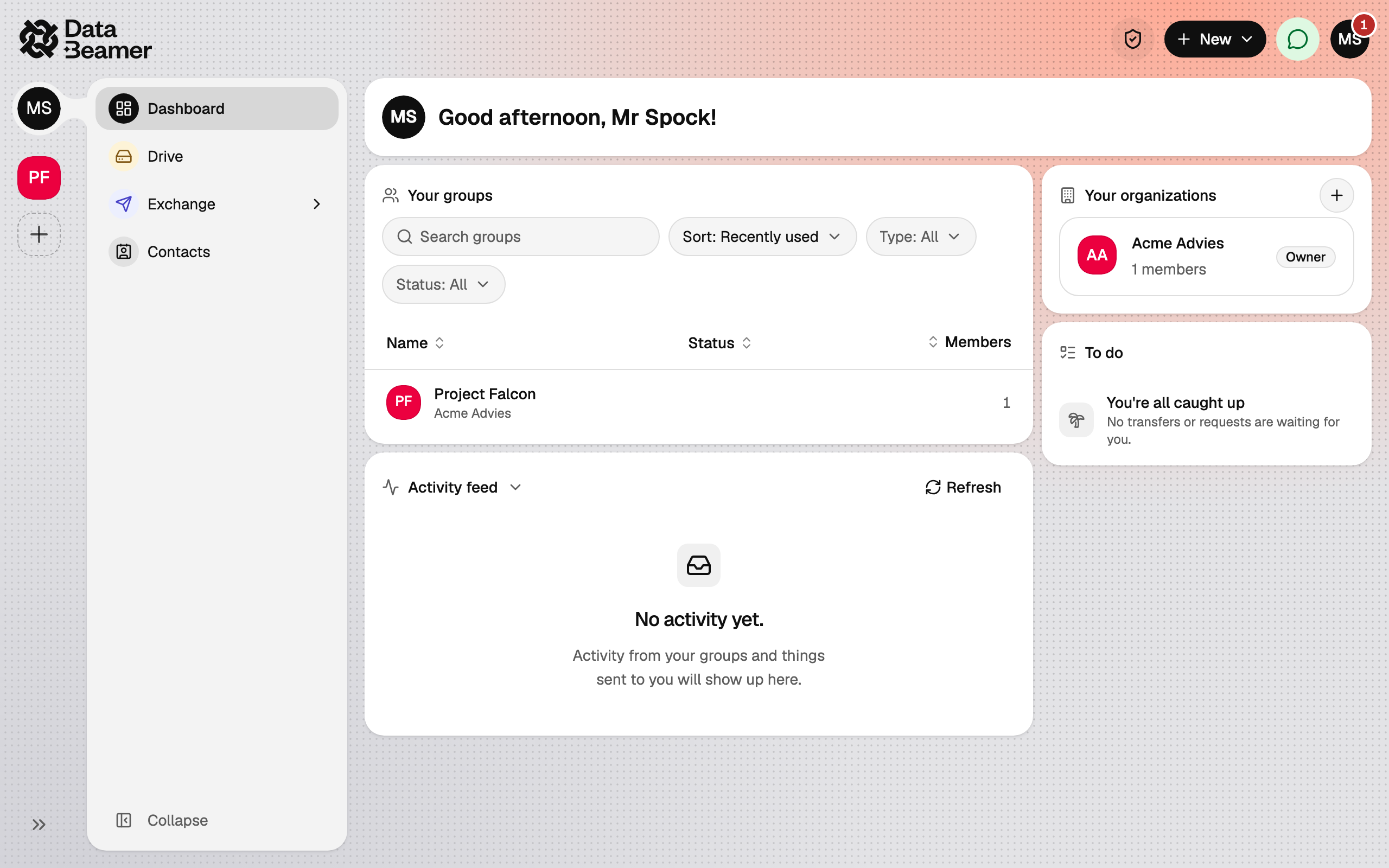
The sidebar on the left is your main navigation. What it shows depends on whether you are in your personal space or inside a group. See also Screen layout.
Personal space #
Dashboard
When you sign in, you land on this page. Here you find an overview of your groups and organisations, which you can click through to, a box with transfers and/or requests that need your action, and an overview of all relevant events from all your groups and your personal space.
Drive
Keep your personal files here and create your encrypted notes. See Upload and organise files.
Exchange
Everything you send and receive from your personal profile (so outside the groups). It contains Transfers, Requests and Secure Mail.
Contacts
Record the people you work with regularly as contacts. That way they come up faster when you want to share something with them. See Contacts.
Inside a group #
Dashboard, Chat, Drive and Exchange (Transfers and Requests)
Visible in every group, to everyone in the group.
Secure Mail
By default, Exchange within a group only contains Transfers and Requests. Secure Mail from a group is only available if it is included in your organisation's plan, because it requires additional specific settings.
Settings
Here you set a few characteristics of the group. This is only visible to people with the owner or admin role.
Your groups are listed in the narrow groups rail on the far left. With the arrows at the bottom you can expand this rail.
The New menu #
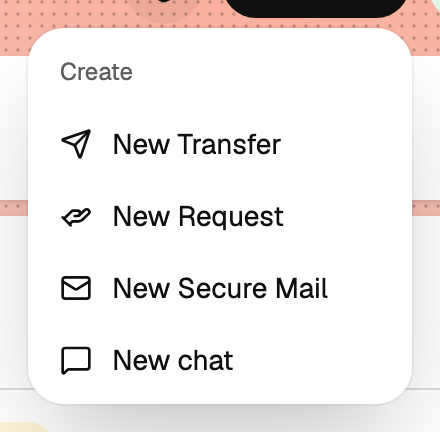
The New button on the right of the top bar is the fastest way to create something new: New Transfer, New Request, New Group or New Organization. You can also drag files onto the window from anywhere to start a transfer.
The user menu #
This is the menu for your personal settings. Click your avatar on the far right of the top bar for Notifications, Settings, the Dark mode switch, What's new, Send feedback and Sign out.
On your phone #
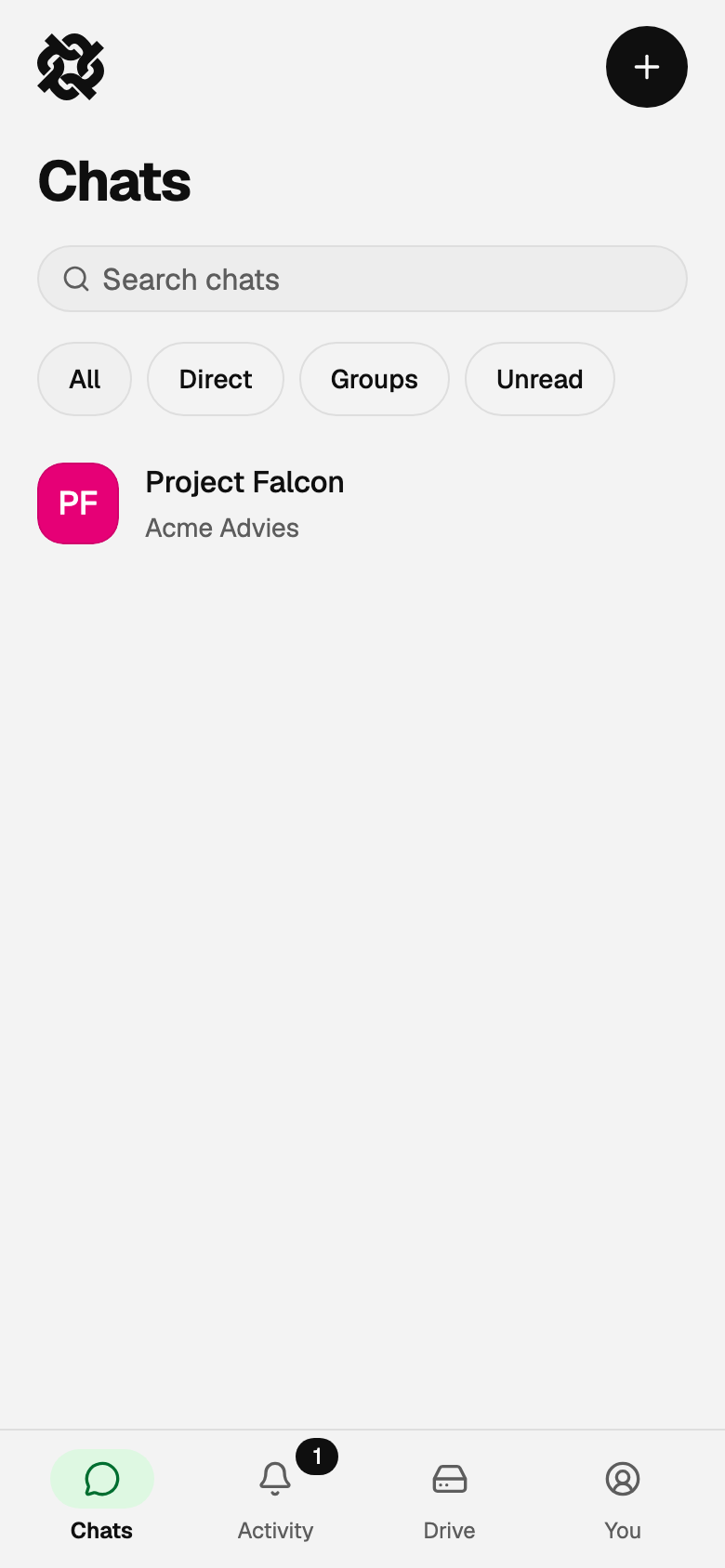
On a small screen, such as your phone, Databeamer has a screen layout adapted to mobile use. The main menu is at the bottom and consists of:
- Chats: direct messages and group chats. This is where the app opens.
- Activity: your activity feed.
- Drive: your files.
- You: your transfers, requests, contacts, settings, audit log and sign out.
Locking and unlocking #
Whenever you open Databeamer it asks for your PIN, or for your passkey if you enabled one. This unlocks the keys stored on the device. If you would rather be asked this once per browser session, turn on Stay unlocked on reload under Settings › Security.